Garmin G1000 tutorial: PFD, MFD, knobs and autopilot
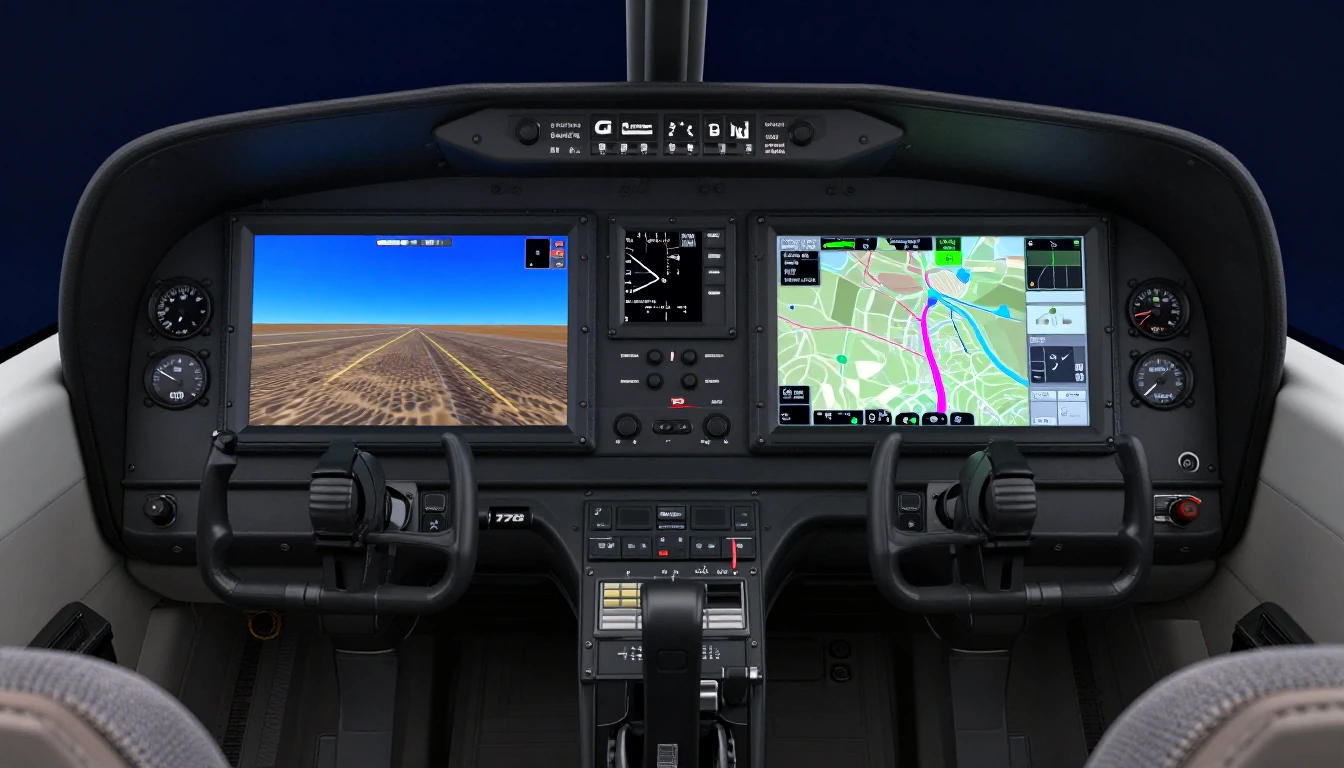
The Garmin G1000 replaces round gauges with two 10.4-inch screens: the PFD on the left shows attitude, airspeed and altitude tapes and the HSI; the MFD on the right shows the moving map with engine gauges down its left edge. Garmin's dual knobs and softkeys drive both, and the NXi version added faster processors in 2017.

Could you pass the instrument written today?
Free practice test from the real FAA question bank — instant score and an explanation on every answer.
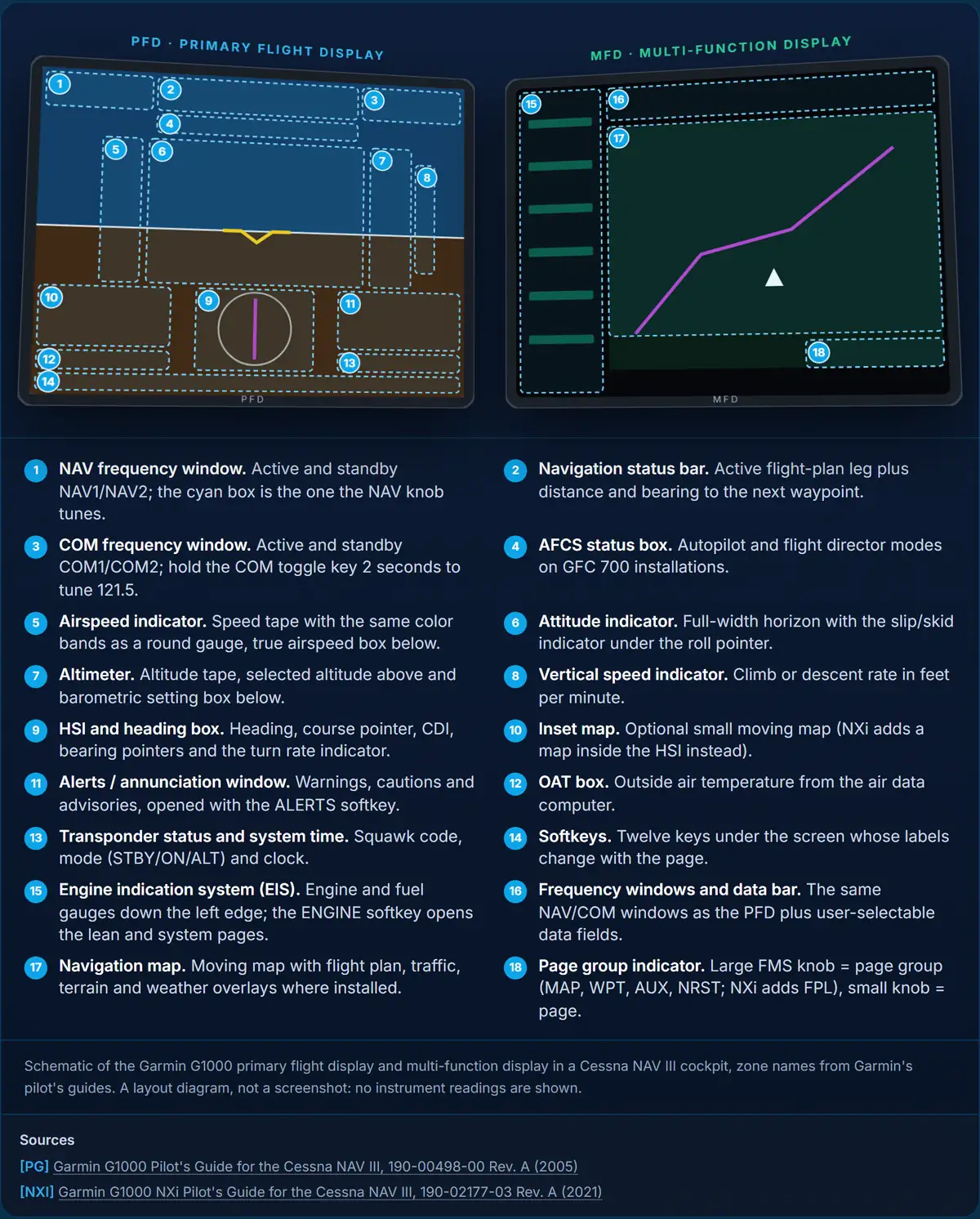
G1000 screen layout, labeled
Both screens are identical GDU displays; what makes one the PFD and the other the MFD is the software page they show. The numbered zones use the names in Garmin's pilot's guide, so they match what your instructor and the AFM supplement call them.
PFD · primary flight display
MFD · multi-function display
- 1NAV frequency window. Active and standby NAV1/NAV2; the cyan box is the one the NAV knob tunes.
- 2Navigation status bar. Active flight-plan leg plus distance and bearing to the next waypoint.
- 3COM frequency window. Active and standby COM1/COM2; hold the COM toggle key 2 seconds to tune 121.5.
- 4AFCS status box. Autopilot and flight director modes on GFC 700 installations.
- 5Airspeed indicator. Speed tape with the same color bands as a round gauge, true airspeed box below.
- 6Attitude indicator. Full-width horizon with the slip/skid indicator under the roll pointer.
- 7Altimeter. Altitude tape, selected altitude above and barometric setting box below.
- 8Vertical speed indicator. Climb or descent rate in feet per minute.
- 9HSI and heading box. Heading, course pointer, CDI, bearing pointers and the turn rate indicator.
- 10Inset map. Optional small moving map (NXi adds a map inside the HSI instead).
- 11Alerts / annunciation window. Warnings, cautions and advisories, opened with the ALERTS softkey.
- 12OAT box. Outside air temperature from the air data computer.
- 13Transponder status and system time. Squawk code, mode (STBY/ON/ALT) and clock.
- 14Softkeys. Twelve keys under the screen whose labels change with the page.
- 15Engine indication system (EIS). Engine and fuel gauges down the left edge; the ENGINE softkey opens the lean and system pages.
- 16Frequency windows and data bar. The same NAV/COM windows as the PFD plus user-selectable data fields.
- 17Navigation map. Moving map with flight plan, traffic, terrain and weather overlays where installed.
- 18Page group indicator. Large FMS knob = page group (MAP, WPT, AUX, NRST; NXi adds FPL), small knob = page.
What is inside a G1000
Part numbers change with the installation and the year, so each row says which version it belongs to.
| Displays | |
|---|---|
| PFD and MFD | Two GDU 1040 displays, 10.4 in, 1024 × 768[PG, NXI]Original G1000. NXi: GDU 1050 (PFD) and GDU 1054 / 1054B (MFD), still 10.4 in, LED backlit. |
| Reversionary mode | Automatic if a display fails[PG, NXI]Flight instruments and engine data move to the remaining screen; the red DISPLAY BACKUP button on the audio panel forces it manually. |
| Boxes behind the panel (Cessna NAV III) | |
| Integrated avionics units | 2 × GIA 63 (GIA 63W, later GIA 64W)[PG, NXI]GPS, VHF COM, VHF NAV and glideslope receivers; one paired with each display. |
| Attitude and heading | GRS 77 AHRS + GMU 44 magnetometer[PG, NXI]NXi installations use the GSU 75 ADAHRS (air data and AHRS in one unit). |
| Air data computer | GDC 74A[PG]Airspeed, altitude, vertical speed and outside air temperature from the pitot-static system. |
| Engine and airframe unit | GEA 71 (GEA 71B on NXi)[PG, NXI] |
| Audio panel | GMA 1347 (GMA 1360 with Bluetooth on later NXi)[PG, NXI] |
| Transponder | GTX 33 (NXi: GTX 335R or 345R with ADS-B)[PG, NXI] |
| Autopilot | GFC 700, where installed[NXI]Mode keys: AP, FD, HDG, NAV, APR, ALT, VS, FLC, BC, VNV (if equipped), NOSE UP / NOSE DN. |
| Databases (NXi pilot's guide, Appendix B) | |
| Navigation | Every 28 days[NXI] |
| Obstacles, SafeTaxi, airport directory | Every 56 days[NXI] |
| Charts | FliteCharts 28 days; ChartView 14 days[NXI] |
| Terrain and basemap | Periodic, no expiration[NXI] |
| How to load | SD card in the MFD's bottom slot, or wirelessly with Flight Stream 510 and Garmin Pilot[NXI] |
What Is the Garmin G1000?
The Garmin G1000 is an integrated flight deck (IFD) that replaces traditional "steam gauge" analog instruments with two large LCD screens. Cessna began delivering G1000 airplanes in 2004-2005 (the 172S NAV III POH is dated February 2005), and it became standard equipment on new Cessna, Diamond, Piper and Beechcraft piston airplanes. In January 2017 Garmin replaced it in production with the G1000 NXi.
The system consists of two primary components: the Primary Flight Display (PFD) on the left, which shows flight instruments, and the Multi-Function Display (MFD) on the right, which shows the moving map, engine instruments, and navigation data. Both screens are 10.4-inch diagonal active-matrix LCDs with 1024x768 resolution.
Behind the displays, the original G1000 integrates several line replaceable units (LRUs): two GIA 63 integrated avionics units (GPS, VHF nav and VHF comm receivers), a GDC 74A air data computer, a GRS 77 attitude and heading reference system (AHRS), a GEA 71 engine/airframe unit, a GMU 44 magnetometer, a GMA 1347 audio panel, a GTX 33 transponder and, optionally, a GDL 69/69A SiriusXM weather receiver. The system table lists what changed on the NXi.
What makes the G1000 revolutionary compared to earlier avionics is the level of integration. Instead of having a separate GPS navigator, separate nav/comm radios, separate transponder, separate engine monitor, and separate autopilot controller, the G1000 combines all of these into a single system where every component communicates with every other component. When you load a localizer approach, the system tunes the localizer frequency for you. When you activate a flight plan, the autopilot can fly it.
The G1000 also provides a critical safety feature called reversionary mode. If either display fails, the remaining screen automatically shows a combined PFD/MFD view with all essential flight and engine information. A dedicated red DISPLAY BACKUP button on the audio panel allows you to manually trigger reversionary mode for training or testing purposes.
Primary Flight Display (PFD) Explained
The PFD is the left screen and your primary instrument scan reference. It presents all the information that six traditional instruments (attitude indicator, airspeed indicator, altimeter, vertical speed indicator, heading indicator, and turn coordinator) displayed separately, now consolidated into a single integrated view. The layout follows the traditional "T" arrangement: attitude in the center, airspeed on the left, altitude on the right, and heading at the bottom.
Below is a detailed breakdown of every PFD element you need to understand.
Attitude Indicator
The central blue-and-brown display that replaces the traditional mechanical gyro. Shows pitch in degrees with reference marks at 5, 10, 15, 20, 25, and beyond. Roll is displayed along the top arc with marks at 10, 20, 30, 45, and 60 degrees. The yellow aircraft symbol (chevron) stays fixed while the horizon moves behind it.
Airspeed Tape
A vertical scrolling tape on the left side of the PFD. Displays airspeed in knots with color bands: white (flap operating range), green (normal operating range), yellow (caution range), and a red line for Vne. A trend vector (magenta bar) projects where your airspeed will be in 6 seconds.
Altimeter Tape
A vertical scrolling tape on the right side. Displays altitude in feet with a digital readout in the center box. The barometric pressure setting (Baro) is shown below, and you can toggle between inches of mercury and hectopascals using the BARO knob.
Vertical Speed Indicator (VSI)
A vertical scale to the right of the altimeter tape showing rate of climb or descent in feet per minute. A green pointer extends up (climb) or down (descent) from the center zero mark. Also displays a required VS to a selected altitude bug when active.
Horizontal Situation Indicator (HSI)
The compass rose at the bottom of the PFD. Replaces the traditional heading indicator and VOR/ILS CDI. Displays a rotating compass card, heading bug, course deviation indicator (CDI), bearing pointers, and the active navigation source (GPS, VOR1, LOC). The CDI needle centers when on course.
Wind Data Block
Shown in the lower-left corner of the PFD. Displays wind direction and speed with three display modes: arrow/speed, direction/speed in digits, or headwind/crosswind components. Cycled using the PFD softkey.
Inset Map
A miniature moving map in the lower-left of the PFD that can be toggled on or off using the INSET softkey. Shows your current GPS position, route, airports, airspace, and terrain. Useful for situational awareness when the MFD is occupied with engine data or other pages.
Alerts and Annunciations
Warnings, cautions and advisory messages appear in the alerts/annunciation window at the lower right of the PFD, opened with the ALERTS softkey. A TRAFFIC annunciation appears on the PFD when a traffic system issues an advisory, and terrain alerts appear when a terrain system is installed.
PFD Softkeys
Along the bottom of the PFD screen are twelve softkeys that change function depending on context. The top-level softkeys include:
- INSET — Toggles the inset map on/off
- CDI — Cycles navigation source: GPS, VOR1, LOC
- PFD — Opens PFD settings (DME, bearing pointers, wind display)
- OBS — Activates OBS mode to hold on a GPS waypoint
- TMR/REF — Timer, V-speed references, and minimums
- NRST — Quick access to nearest airports
- ALERTS — Message and alert review
Multi-Function Display (MFD) Explained
The MFD is the right screen and serves as your information management center. While the PFD is focused on flying the aircraft, the MFD handles navigation planning, engine monitoring, weather, traffic, and terrain awareness. The MFD defaults to the map page with engine instruments displayed in a strip along the left side (in single-engine aircraft) or across the top (in multi-engine aircraft).
The MFD has multiple pages: the large FMS knob selects a page group and the small FMS knob selects a page within it, while the softkeys along the bottom change with each page. Here are the key MFD pages you will use regularly.
Map Page
The default MFD view. A moving map with configurable overlays including airways, airspace boundaries, terrain shading, datalink weather, the flight plan route and topographic features. Zoom in and out with the RANGE joystick; the FMS knob changes pages, not range.
Engine Pages
The engine indication system (EIS) strip runs down the left edge of the MFD. The ENGINE softkey opens fuller pages: RPM, fuel flow, oil temperature and pressure, EGT and CHT, volts and amps, and fuel quantity (plus manifold pressure on constant-speed airplanes). The lean page helps find peak EGT for mixture leaning.
Traffic Page
When a traffic source is installed (TIS-A, ADS-B In or an active traffic system), this page shows nearby traffic with relative altitude and climb/descent arrows. A traffic advisory is drawn as a solid yellow circle; proximate traffic as a solid cyan diamond and other traffic as a hollow diamond.
Terrain Page
A terrain awareness display from the onboard terrain and obstacle databases, relative to your altitude: red for terrain above you or less than about 100 ft below, yellow for terrain about 100 to 1,000 ft below, and black for terrain more than 1,000 ft below. Obstacles such as towers have their own symbols.
Nearest Page
Lists the nearest airports, VORs, NDBs, intersections, user waypoints, frequencies, and airspaces relative to your current position. Invaluable for diversion planning. Selecting a nearest airport shows runway length, surface type, and available approaches.
Flight Plan Page
Displays the entire active flight plan in a scrollable list. Shows each waypoint, leg distance, desired track, and ETE. You can insert, delete, and rearrange waypoints directly from this page using the FMS knob and ENT key.
Procedures Page
The gateway to loading departures (SIDs), arrivals (STARs), and approaches. Select the destination airport, then choose from available procedures in the database. The G1000 sequences the procedure waypoints into the active flight plan automatically.
Weather (XM) Page
If equipped with a GDL 69/69A SiriusXM receiver (or ADS-B In for FIS-B weather on later installations), this page shows radar imagery, METARs, TAFs, winds aloft, TFRs and other products over the map. Check the age of each product before you use it.
MFD Page Groups
The MFD organizes pages into groups, navigated using the large FMS knob:
- MAP — Map page, traffic map, terrain map, weather pages
- WPT — Waypoint information (airports, VORs, NDBs, intersections)
- AUX — System setup, database versions, trip planning, utility
- NRST — Nearest airports, VORs, NDBs, frequencies, airspace
- FPL — Flight plan pages (a separate page group on the G1000 NXi)
Key Pages, Softkeys, and Physical Controls
Understanding the physical controls is essential before you fly with the G1000. The system uses a combination of dedicated buttons, dual concentric knobs, and context-sensitive softkeys. Both displays carry the same set of knobs and keys (Garmin pilot's guide, section 1.3), so the PFD and MFD bezels work the same way.
Left side of each display bezel
- NAV VOL/ID knob — NAV audio volume; press to toggle the Morse ident.
- NAV toggle key and NAV knob — The key swaps active and standby. Large knob = MHz, small knob = kHz; pressing the knob moves the tuning box between NAV1 and NAV2.
- HDG knob — Sets the heading bug; press to sync it to your current heading.
- ALT knob — Sets the selected altitude for the alerter and the autopilot: large knob thousands, small knob hundreds.
Right side of each display bezel
- COM VOL/SQ, COM toggle and COM knob — Volume and squelch; the key swaps active/standby (hold it 2 seconds to tune 121.5); the knob tunes like the NAV knob.
- CRS/BARO knob — Large ring sets the altimeter setting, small knob sets the course; press to center the CDI on the VOR.
- FMS Knob (Large/Small) — The most-used control. Large knob scrolls through page groups or moves the cursor between fields. Small knob scrolls within a page group or changes values within a field.
- FPL Button — Direct access to the active flight plan page.
- PROC Button — Direct access to the procedures page (departures, arrivals, approaches).
- Direct-To Button — Enters a direct-to navigation mode. Type or select a waypoint and press ENT twice.
- ENT Button — Confirms selections (equivalent to "Enter" or "OK").
- CLR Button — Cancels or backs out of current selection.
- MENU Button — Opens context menu for the current page.
- Range (Joystick) — Adjusts map range on MFD.
Flight Plan Entry Step by Step
Building a flight plan on the G1000 is one of the most important skills to master. Here is the exact procedure, step by step.
1. Open the Flight Plan Page
Press the FPL button on the MFD bezel. This opens the active flight plan page. If a flight plan already exists, you will see it listed. To start fresh, press MENU and select 'Delete Flight Plan' to clear the existing plan, then press FPL again.
2. Enter the Departure Airport
With the flight plan page open and the cursor active (flashing), use the small FMS knob to spell out the departure airport identifier letter by letter. For example, for San Jose (KSJC), turn the small knob to 'K', then 'S', then 'J', then 'C'. Press ENT to confirm the waypoint.
3. Add Enroute Waypoints
After the departure airport is entered, the cursor moves to the next empty row. Enter each enroute waypoint (VORs, intersections, GPS waypoints) using the same letter-by-letter method. Press ENT after each waypoint. The G1000 will show the distance and bearing to each waypoint as you add them.
4. Enter the Destination Airport
Enter the destination airport identifier as the final waypoint. Press ENT. Your complete route now appears as a list of waypoints with cumulative distance and estimated time enroute based on your groundspeed.
5. Activate the Flight Plan
This is the step most students forget. Press the FPL button, then press MENU, and select 'Activate Flight Plan?' Press ENT. The route line on the map changes from white to magenta, indicating the flight plan is now active and GPS navigation will follow it. Verify the magenta line on both the MFD map and PFD inset map.
6. Load a Departure (Optional)
If your departure airport has published SIDs, press PROC, select 'Departure', choose the airport, the desired SID, the runway, and the transition. Press 'Load'. The SID waypoints are inserted into the flight plan after the departure airport.
7. Load an Arrival (Optional)
For a STAR at the destination, press PROC, select 'Arrival', choose the airport, the STAR, and the transition. Press 'Load'. STAR waypoints are inserted before the destination airport in the flight plan.
8. Verify the Route
Scroll through the entire flight plan to verify every waypoint is correct. Check the map page to confirm the route line makes sense geographically. Cross-reference with your paper or EFB flight plan. Any errors in the flight plan will become autopilot errors in flight.
Pro Tip: Direct-To Shortcut
If you just need to navigate direct to a single waypoint without building a full flight plan, press the Direct-To button (the D with an arrow), type the identifier, and press ENT twice. This is faster for simple VFR flights or when ATC gives you a direct clearance.
Loading an Approach (ILS, RNAV, VOR)
Loading approaches correctly is critical for IFR operations. The G1000 makes it straightforward, but you need to follow the exact sequence to ensure the autopilot and CDI are configured properly.
General Approach Loading Procedure
- Press PROC on the MFD bezel to open the procedures page.
- Select Select Approach. The G1000 defaults to the destination airport in your flight plan. If no flight plan is active, you will need to select the airport manually.
- Scroll through the available approaches using the FMS knob. Approaches are listed by type: ILS, LOC, RNAV (GPS), VOR, NDB, visual (NXi only). Select the desired approach and press ENT.
- Select the transition. This is the initial approach fix (IAF) you will use to begin the approach. Options typically include named fixes and "Vectors" (for radar vectors to final). Press ENT.
- Choose Load or Activate. Load inserts the approach into the flight plan without immediately sequencing to it — this is the preferred method when you are still enroute. Activate immediately begins sequencing the approach.
- Verify the approach is loaded by checking the flight plan page. The approach waypoints should appear after the last enroute waypoint, with the missed approach sequence shown at the end.
ILS Approach Specifics
For an ILS approach, the G1000 can switch the CDI source from GPS to LOC automatically on the way to the final approach course when the localizer is tuned and the approach is active. Verify it: watch for the annunciation to change from GPS to LOC in the HSI. The glideslope diamond will appear on the right side of the PFD when the localizer is captured. If you have the autopilot in APR mode, it will automatically couple to the localizer and then the glideslope. Set the final approach course using the CRS knob and set the decision altitude in the minimums window (TMR/REF softkey).
RNAV (GPS) Approach Specifics
RNAV approaches use GPS for both lateral and vertical guidance. A WAAS-equipped G1000 (GIA 63W and later) can fly LPV approaches, the most precise GPS approach type, with minimums as low as 200 feet; the original non-WAAS units cannot. The CDI stays on GPS throughout the approach. Watch for the approach annunciation: LPV, LNAV/VNAV, LNAV+V, or LP. CDI sensitivity tightens automatically from enroute to terminal (1.0 nm full scale) to approach (0.3 nm, or angular on LPV). The vertical deviation indicator (VDI) appears on the PFD for approaches with vertical guidance.
VOR Approach Specifics
VOR approaches can be flown with the CDI source set to either GPS (overlay) or VOR1. When flown as a GPS overlay, the G1000 uses GPS for course guidance but the approach is procedurally a VOR approach. When flown using VOR1, you receive raw VOR data on the CDI. Switch the CDI source using the CDI softkey on the PFD. Set the inbound VOR course using the CRS knob and verify the OBS course matches the approach plate.
Vectors-to-Final vs Full Approach
When ATC provides radar vectors to the final approach course, select "Vectors" as the transition. The G1000 will show the final approach course as an extended magenta line. When ATC clears you for the approach, press Activate Vectors to Final to sequence the approach. When flying a full approach (procedure turn, holding pattern, or from an IAF), select the specific transition fix instead. The G1000 will sequence you through all fixes including any procedure turn or hold-in-lieu-of.
Master IFR Procedures with Rotate
Practice instrument approaches, holding patterns, and navigation with our interactive question bank and VOR simulator. Over 1,800 questions covering Part 107, PPL, instrument, and commercial.
Using the Autopilot (GFC 700)
The GFC 700 is Garmin's digital autopilot that integrates directly with the G1000 system. It is a two-axis autopilot (pitch and roll) with an optional yaw damper, controlled with dedicated mode keys: AP, FD, HDG, NAV, APR, ALT, VS, FLC, BC, VNV (if equipped) and NOSE UP / NOSE DN.
Before engaging the autopilot, always set the heading bug and altitude preselect to your desired values. The autopilot will use these references. Engage the autopilot by pressing the AP button. Then select a lateral mode (HDG, NAV, APR, BC) and a vertical mode (VS, FLC, ALT, VNV).
The autopilot annunciations appear at the top of the PFD in a green bar. The currently active mode is shown in green, armed modes in white. For example: HDG / VS means heading mode active for lateral, vertical speed active for vertical. NAV / ALT ARM means NAV mode is armed (waiting to intercept) and altitude is armed for capture.
| Mode | Description | When to Use |
|---|---|---|
| HDG (Heading) | Commands the autopilot to fly the heading set by the heading bug on the HSI. Turn the HDG knob to change the target heading (press it to sync the bug to your current heading). The autopilot banks within its own roll limit to turn to the new heading. | Vectors from ATC, visual maneuvering, traffic pattern positioning. |
| NAV (Navigation) | Tracks the active navigation source: GPS flight plan, VOR radial, or localizer. Pressed away from the course, NAV arms (white) and the autopilot keeps flying the current lateral mode until it captures the course (green). Once captured, it follows the lateral path. | Enroute GPS navigation, VOR-to-VOR, tracking a radial. |
| APR (Approach) | Similar to NAV mode but adds glideslope/glidepath coupling. When flying an ILS, pressing APR arms both localizer and glideslope capture. For RNAV (LPV/LNAV+V) approaches, it arms GPS lateral and vertical guidance. The annunciation changes from APR (armed) to APR (captured). | Any precision or non-precision approach where vertical guidance is desired. |
| VS (Vertical Speed) | Holds the selected vertical speed (feet per minute). Use the nose up/down buttons on the autopilot panel to set the target VS in 100 fpm increments. The autopilot adjusts pitch to maintain the selected rate regardless of airspeed changes. | ATC-assigned climb or descent rates, controlled descents, holding pattern altitude changes. |
| FLC (Flight Level Change) | Manages the transition between altitudes by holding a selected airspeed. Set the target altitude with the ALT knob, press FLC, and adjust the speed reference with NOSE UP / NOSE DN. The autopilot pitches to hold that airspeed while you set climb or descent power, and captures the preselected altitude. | Climbs and descents where airspeed management is critical. Efficient for enroute altitude changes. |
| ALT (Altitude Hold) | Holds the current altitude when pressed. The autopilot maintains level flight at the altitude captured. If a preselected altitude was set, ALT mode engages automatically when that altitude is reached during a VS or FLC climb/descent. | Level cruise, holding patterns, any time level flight is needed. |
| VNV (Vertical Navigation) | Available where the installation includes it (Garmin lists the VNV key as "if equipped"). Provides VNAV path guidance for descents using altitude constraints in the flight plan, with a vertical deviation indicator and a computed descent path the autopilot can follow. | RNAV arrivals with altitude constraints, top-of-descent planning. |
| BC (Back Course) | Reverses the CDI sensing for back-course localizer approaches. In normal NAV/APR mode, flying a back-course approach would produce reverse sensing. BC mode corrects this so the CDI reads correctly. | Back-course localizer approaches only. Rare but some airports still have them. |
Critical: Know How to Disconnect
The autopilot disconnect button is on the control yoke (red button, usually on the left horn). Press it firmly. You can also disconnect by pressing the AP button on the autopilot control panel. When the autopilot disconnects, an aural alert sounds and "AP" flashes in the annunciation bar. Always be prepared to hand-fly the aircraft immediately after disconnecting. On the checkride, the examiner will expect you to demonstrate manual flying proficiency at all times, not just autopilot management.
G1000 vs Steam Gauges: Complete Comparison
If you learned to fly on traditional round gauges, the transition to the G1000 involves adapting your instrument scan and workflow. Here is how each flight parameter compares between the two systems.
| Feature | Steam Gauges | Garmin G1000 |
|---|---|---|
| Attitude display | 3-inch mechanical gyro horizon | Full-width synthetic vision (optional) with pitch/roll scales |
| Airspeed | Round dial, hard to read trend | Scrolling tape with 6-second trend vector and V-speed bugs |
| Altimeter | Three-pointer or drum, parallax errors | Scrolling tape with digital readout, altitude alerting |
| Heading / HSI | Separate heading indicator + VOR CDI | Integrated HSI with CDI, bearing pointers, GPS/NAV source |
| Navigation | Separate GPS unit (e.g., GNS 430) | Fully integrated GPS/NAV/COM in PFD and MFD |
| Engine monitoring | Individual round gauges for each parameter | Digital engine page with lean assist, exceedance logging |
| Weather | Separate device or none | Datalink weather on the map where a receiver is installed (SiriusXM, or FIS-B via ADS-B In) |
| Traffic | Separate display or none | Traffic on the PFD inset and MFD when a traffic source is installed |
| Terrain | Paper charts only | Relative terrain shading on the map; alerts where a terrain system is installed |
| Failure modes | Vacuum pump failure takes out attitude and heading indicators together | Reversionary mode plus standby airspeed, altimeter, attitude indicator and compass (172S NAV III) |
| Scan pattern | Radial scan across six instruments | Everything on one screen, T-scan adapted to tapes |
G1000 vs G1000 NXi: What Changed
The G1000 NXi (Next Experience Integrated) is Garmin's modernized version of the G1000 platform, announced in January 2017. It keeps the 10.4-inch two-screen layout but uses new display units (GDU 1050/1054) with faster processors and new software features. Older G1000 airplanes stay in service and NXi upgrades exist for many of them, so you may fly both versions during training.
The cockpit layout, knobs, buttons, and basic workflow remain the same between G1000 and NXi. The differences are in software capabilities, processing speed, and additional safety features.
| Feature | Original G1000 | G1000 NXi |
|---|---|---|
| Processing and map | Original processors | Faster processing: faster map rendering and smoother panning (Garmin) |
| Display backlight | Original backlight | LED backlighting |
| Map in the HSI | Inset map only | HSI map: a 210° arc map overlaid on the HSI (not shown together with the inset map) |
| Visual approaches | Not available | Visual approaches built on a 3° glidepath (added in a 2018 software update) |
| SurfaceWatch | Not available | Optional runway and taxiway alerting |
| Database updates | SD card | SD card, or wirelessly through Flight Stream 510 and Garmin Pilot |
| MFD page groups | MAP, WPT, AUX, NRST | Adds an FPL page group |
| Transponder | GTX 33 Mode S | GTX 335R or 345R; Textron lists ADS-B In/Out as standard on its NXi pistons |
Aircraft Equipped with the Garmin G1000
The G1000 is factory-installed in a wide range of single and multi-engine piston aircraft. Here are the most common aircraft you will encounter with G1000 avionics.
Cessna 172S Skyhawk SP
Primary trainerThe most common G1000 trainer. The 172S NAV III (G1000) POH dates from February 2005, and current Skyhawks fly the G1000 NXi.
Cessna 182T Skylane
Cross-country / personalHigh-performance single with a constant-speed prop; among the first Cessnas delivered with the G1000 (2004-05) and moved to the NXi in 2017. Popular for instrument training and personal transport.
Cessna 206H / T206H Stationair
Utility / bushSix-seat utility airplane covered by the same Cessna NAV III pilot's guides as the 172 and 182.
Diamond DA40 Diamond Star
Primary / advanced trainerComposite construction, excellent visibility. Widely used in university flight programs. Available with G1000 or G1000 NXi.
Diamond DA42 Twin Star
Multi-engine trainerDiesel twin used extensively for MEL training. G1000 with dedicated twin-engine display pages. FADEC integration for engine management.
Cirrus SR20 / SR22 (not a G1000)
Related systemCirrus never shipped the G1000 itself. Its Cirrus Perspective flight deck is built by Garmin on G1000-family hardware but has its own layout and controls, so learn it from the Cirrus/Garmin Perspective guide.
Piper PA-28 Archer
Primary trainerLater Archer III airplanes and the current Archer models fly with Garmin G1000-family avionics. Check the airplane's AFM supplement for the exact system.
Beechcraft G36 Bonanza
High-performance personalRetractable-gear six-seater; Textron moved it to the G1000 NXi in 2017.
Beechcraft G58 Baron
Multi-engine personalTwin-engine G1000 installation with engine data for both engines; on the G1000 NXi since 2017 per Textron.
Tips for Transitioning from Steam Gauges
If you trained on traditional instruments, switching to the G1000 can feel overwhelming at first. The raw flying skills transfer perfectly — what changes is how you gather information and manage systems. Here are practical tips from pilots who have made the transition.
Adapt your scan, do not reinvent it
The basic T-scan still works with the G1000. Attitude is still in the center, airspeed on the left, altitude on the right, heading at the bottom. The shapes have changed (tapes instead of dials), but the scan pattern is the same. Start with the attitude indicator and radiate outward.
Learn the G1000 on the ground first
Use Garmin's PC trainer software (see fly.garmin.com for the current version) or a desktop simulator to practice flight plan entry, approach loading and page navigation on the ground, where mistakes cost nothing. Read the pilot's guide for your software version alongside it.
Do not try to learn everything at once
For your first few G1000 flights, focus only on the PFD scan and basic navigation. Ignore the MFD pages, the autopilot, and the advanced features. Add one new skill per flight: first the moving map, then direct-to navigation, then flight plans, then approaches, then the autopilot.
Watch the airspeed trend vector
One of the most useful G1000 features is the magenta airspeed trend vector — a bar on the airspeed tape that shows where your airspeed will be in 6 seconds. This gives you early warning of speed changes. If the trend vector shows you decelerating toward stall speed, add power before the airspeed actually decreases.
Master the FMS knob early
The dual concentric FMS knob (large outer ring, small inner knob) is your primary interface with the G1000. Large knob moves between fields, small knob changes values. It feels awkward at first but becomes second nature. Practice on the ground until entering an airport identifier is automatic.
Always know your CDI source
The single most dangerous mistake on the G1000 is having the wrong CDI source selected. Glance at the CDI annunciation (GPS, VOR1, or LOC) on the HSI every time you reference the course deviation indicator. If it says VOR1 and you are flying a GPS approach, your course guidance is wrong.
Brief the autopilot before using it
Before engaging any autopilot mode, verbalize: heading bug set, altitude preselect set, autopilot mode I am selecting, and what I expect it to do. This verbal brief catches errors before the autopilot executes them. If the aircraft does not respond as expected, disconnect immediately and hand-fly.
Practice partial panel on the G1000
Unlike steam gauges where partial panel means covering instruments, G1000 partial panel means reversionary mode (one screen failed). Practice pressing the DISPLAY BACKUP button and flying with a single screen. Also brief the red-X cases: in a 172S NAV III the POH sends you to the standby airspeed indicator, standby altimeter, standby attitude indicator or magnetic compass depending on which instrument is flagged.
Keep your hand-flying skills sharp
The G1000 and its integrated autopilot make it tempting to let the automation do everything. Resist this temptation. The FAA expects all pilots to maintain manual flying proficiency. Fly at least one approach per flight hand-flying, without the autopilot. Your checkride will include hand-flown maneuvers, and real-world autopilot failures happen.
Common G1000 Mistakes and How to Avoid Them
These are the errors flight instructors see most frequently with G1000 students. Learn them now so you do not make them in the airplane.
Forgetting to activate the flight plan
What happens: You enter waypoints on the flight plan page but forget to press the FPL key and then ACTIVATE. The GPS continues navigating direct-to the last entered waypoint or shows no active route.
How to fix: Always verify the flight plan is active by checking the magenta route line on the map. If the route is white/cyan, it is not activated. Press FPL, then menu, then Activate.
Wrong navigation source selected
What happens: You load a GPS approach but the CDI source is still set to VOR1 or LOC. The HSI shows VOR deviation instead of GPS course guidance. On an RNAV approach, this means no lateral guidance.
How to fix: Always check the CDI source annunciation at the top of the HSI. Press the CDI softkey on the PFD to toggle between GPS, VOR1, and LOC. For GPS approaches, it must read GPS.
Not loading the full approach sequence
What happens: You select Vectors-to-Final instead of loading the full approach with a transition. You miss step-down fixes, altitude constraints, and the procedure turn or hold-in-lieu.
How to fix: Load the full approach with an IAF transition when possible. Use Vectors only when ATC is providing radar vectors to final. Even then, verify all step-down altitudes manually.
Chasing the magenta line instead of flying the aircraft
What happens: Fixation on the GPS track leads to poor airspeed control, missed altitude assignments, and reduced outside visual scan. The magenta line becomes the only reference.
How to fix: Fly the airplane first. Maintain airspeed and altitude, then manage the navigation. Develop a scan that includes the PFD attitude and performance instruments, not just the GPS track.
Not understanding reversionary mode
What happens: When one display fails, the other enters reversionary mode and shows a combined PFD/MFD view. Pilots unfamiliar with this mode panic because the display layout changes completely.
How to fix: Practice reversionary mode on the ground. Press the red DISPLAY BACKUP button to simulate a screen failure. Learn where the flight instruments and engine gauges appear in reversionary mode.
Altitude preselect not set before engaging autopilot
What happens: You engage VS or FLC mode without setting a target altitude. The autopilot climbs or descends indefinitely, potentially busting an assigned altitude or entering terrain.
How to fix: Always set the altitude bug to your target altitude before engaging any vertical autopilot mode. Verify the preselected altitude in the alerter box on the altimeter tape.
Over-reliance on autopilot at low altitude
What happens: Engaging the autopilot in the traffic pattern or during visual maneuvering close to the ground. If the autopilot commands an unexpected pitch or bank, recovery time is minimal.
How to fix: Hand-fly below 1000 AGL in the traffic pattern. Use the autopilot for enroute, approach, and other stabilized phases of flight where you have altitude to recover from anomalies.
Database not current
What happens: The navigation database runs on a 28-day cycle (obstacles and SafeTaxi on 56 days). With an expired database, procedures, waypoints and airspace may be wrong, and GPS approaches need current data.
How to fix: Check the database dates on the power-up screen and update by SD card in the MFD's bottom slot or, with Flight Stream 510, wirelessly from Garmin Pilot. The new data becomes active at the next power cycle.
G1000 for IFR Operations
The G1000 transforms IFR flying by integrating navigation, approach guidance, and automation into a single system. Here is how to use the G1000 effectively for the key phases of instrument flight.
Instrument Approaches
The G1000 stores the entire Jeppesen or FAA approach database onboard. Load approaches using the PROC button as described above. Key points for IFR approach flying with the G1000:
- Set your minimums (DA or MDA) using the TMR/REF softkey on the PFD. The G1000 marks the minimums on the altimeter tape and alerts you as you approach and reach them.
- For precision approaches (ILS, LPV), the glideslope/glidepath diamond appears on the right side of the PFD. Keep the diamond centered for proper vertical guidance.
- CDI sensitivity automatically tightens from enroute to terminal (1.0 nm) to approach (0.3 nm) as you progress along the approach. You do not need to change it by hand.
- The missed approach sequence is pre-loaded when you load the approach. Press the SUSP button to unsuspend sequencing when executing the missed approach, and the G1000 will navigate you through the published missed approach procedure.
Holding Patterns
The G1000 can depict published holds that are part of an approach procedure (such as a hold-in-lieu-of-procedure-turn). These appear as a racetrack pattern on the map. The autopilot in NAV mode will fly the hold automatically, including the entry. For ATC-assigned holds not in the database, you can use the OBS function to hold on a waypoint, or manually fly the hold using heading mode. The holding pattern entry tool can help you determine the correct entry type.
Missed Approach Procedures
When executing a missed approach, apply full power, pitch up to the missed approach climb attitude, and begin the published procedure. On the G1000, press the SUSP key to begin sequencing through the missed approach waypoints. If the autopilot is engaged, switch to heading mode (HDG) and vertical speed (VS) to begin the climb, then switch to NAV mode once the GPS sequences to the missed approach course. Verify the missed approach holding fix and altitude on the flight plan page.
Alternate Airport Planning
The NRST (Nearest) function is invaluable for diversion planning. It shows the closest airports with runway length, lighting, and available approaches. You can select a nearest airport and press Direct-To to immediately navigate there. In an emergency or weather diversion, this function can save critical minutes versus manually looking up an alternate airport identifier.
IFR Checkride with G1000
On the instrument checkride, the examiner will test both your G1000 proficiency and your ability to fly without it. Expect scenarios where the GPS is flagged or RAIM is lost, requiring you to revert to raw VOR/ILS navigation. Practice switching the CDI source from GPS to VOR1 and flying conventional approaches with VOR raw data. Also practice with the autopilot disabled — you must demonstrate hand-flown approaches to ACS standards.
Simulator Practice Recommendations
Simulator practice is the most cost-effective way to build G1000 proficiency. Here are the best tools available and how to use them.
Garmin PC Trainer
Garmin publishes PC trainer software for its flight decks that reproduces the real button logic, which makes it the closest thing to the airplane for practicing flight plan entry, approach loading, radio tuning and page navigation. Check fly.garmin.com for the current version, price and supported software.
X-Plane 12
X-Plane 12 offers G1000-style avionics in its default Cessna 172, including flight plan entry, approach loading, autopilot modes and CDI source switching. Simulator logic can differ from your airplane's software version, so confirm procedures in the pilot's guide. Use it with a yoke and rudder pedals for the most realistic experience. Excellent for practicing full IFR flights from departure to approach.
Microsoft Flight Simulator 2024
Microsoft Flight Simulator includes a G1000 NXi (developed by Working Title) in the Cessna 172 Skyhawk and other aircraft. Great for VFR practice and for getting comfortable with the overall layout and information presentation before you sit in the real airplane.
PilotEdge or VATSIM
Combine your flight simulator with a live ATC network for realistic IFR practice. PilotEdge provides professional ATC coverage in the western US, while VATSIM offers volunteer coverage worldwide. Flying IFR with live ATC forces you to manage the G1000 under time pressure — exactly like real IFR flying. This builds the cockpit management skills that separate proficient G1000 pilots from those who struggle.
Rotate Interactive Tools
Use our free VOR simulator to practice VOR navigation concepts that apply directly to G1000 CDI interpretation. The holding pattern tool helps you master hold entries that the G1000 autopilot will execute. And our free practice test covers instrument knowledge questions you will encounter on the written exam and checkride.
Recommended Practice Routine
Dedicate 30 minutes before each flight lesson to the Garmin PC trainer or flight simulator. Practice the specific procedures you will fly in the lesson: the departure, the enroute navigation, and the approach. Chair-fly the exact button presses and knob turns, so the airplane hour goes to flying instead of searching for pages.
Ready to Pass Your Instrument Checkride?
Our question bank covers IFR procedures, navigation, regulations, and weather — all the knowledge you need for the instrument written exam and oral. Study on any device, track your progress, and identify weak areas. Studying for multiple written exams in parallel? The All-5 Exam Bundle ($39) unlocks every FAA track for 60 days.
Frequently Asked Questions
What is on the G1000 PFD?
Garmin's pilot's guide lists the airspeed indicator (tape) on the left, the attitude indicator across the middle with the slip/skid indicator, the altimeter and vertical speed indicator on the right, the HSI with the heading box at the bottom, NAV and COM frequency windows and the navigation status bar on top, plus the OAT box, transponder status bar, system time and twelve softkeys along the bottom edge.
What happens if a G1000 screen fails?
The system switches to reversionary mode automatically: the flight instruments and engine data appear on the screen that still works, and the NAV/COM radios tied to the failed display are flagged invalid. You can force it with the red DISPLAY BACKUP button on the audio panel. A Cessna 172S NAV III also carries a standby airspeed indicator, standby altimeter, standby attitude indicator and a magnetic compass.
What is the difference between the G1000 and the G1000 NXi?
Garmin introduced the NXi in January 2017. It keeps the same layout and knobs but adds faster processors for smoother map rendering, LED backlighting, a map inside the HSI, optional SurfaceWatch, visual approaches and wireless database updates through Flight Stream 510. Textron brought it to the 172, 182, T206, G36 Bonanza and G58 Baron.
How do you change pages on the G1000 MFD?
Turn the large FMS knob to choose a page group (MAP, WPT, AUX and NRST; the NXi adds FPL) and the small FMS knob to choose a page inside that group. The map range is set with the RANGE joystick, not the FMS knob.
How often does the G1000 database need updating?
The navigation database runs on a 28-day cycle; obstacle, SafeTaxi and airport directory data on 56 days; terrain and basemap have no expiration. Updates go in by SD card in the MFD's bottom slot or, on the NXi with Flight Stream 510, wirelessly from the Garmin Pilot app. New data becomes active at the next power cycle.
Which knob sets the altimeter on the G1000?
The large outer ring of the CRS/BARO knob sets the barometric pressure; the small inner knob sets the course. Pressing the CRS knob centers the CDI on the active VOR.
What does a red X on the G1000 mean?
A red X means the system has lost valid data for that instrument. In the 172S NAV III POH a red X over airspeed means use the standby airspeed indicator, over altitude the standby altimeter, over attitude the standby attitude indicator, and over the HSI the magnetic compass. If only the magnetometer fails, attitude stays valid and only heading is flagged.
Can I practice the G1000 at home?
Yes. Garmin publishes PC trainer software for its flight decks (check fly.garmin.com for the current version), and desktop simulators such as X-Plane 12 and Microsoft Flight Simulator include G1000-style avionics in their Cessna 172. They are good for practicing button sequences, not a substitute for the pilot's guide for your exact software version.
Is the G1000 approved for IFR?
Yes, as installed and certified in the airplane. WAAS-capable G1000 installations (GIA 63W and later) can fly LPV approaches; the original 2005 GIA 63 units are non-WAAS. Check the AFM supplement for your airplane to see which approaches it is approved for.
Do airlines use the G1000?
No. Airliners use other flight decks (for example Collins Pro Line Fusion or Honeywell Primus Epic), and Garmin's own business-jet decks are the G3000/G5000. The G1000 still teaches the same ideas: speed and altitude tapes, a flight management system and autopilot mode annunciations.
How is the GFC 700 autopilot different from older autopilots?
The GFC 700 is part of the G1000: it reads the same flight plan, heading bug, altitude preselect and navigation source, so it can fly GPS courses, couple to approaches and capture altitudes from the same screens. Older standalone autopilots such as the KAP 140 have their own controller and far less integration. Modes are annunciated in the AFCS status box at the top of the PFD: green is active, white is armed.
Compare the aircraft guides
Same format in every guide: spec tables with their sources, V-speeds from the POH and rental costs measured on real rate sheets.
Cessna 152
2 seats · high wing · fixed gear · 110 hp
Cessna 172 Skyhawk
4 seats · high wing · fixed gear · 180 hp (172S)
Piper PA-28 Cherokee
4 seats · low wing · fixed gear · 140-180 hp
Cessna 182 Skylane
4 seats · high wing · fixed gear · 230 hp (182T)
Mooney M20
4 seats · low wing · retractable gear
Cirrus SR22
Low wing · fixed gear · 310 hp · airframe parachute (CAPS)
Beechcraft Bonanza
6 seats (G36) · low wing · retractable gear · 300 hp
Garmin G1000 You are here
Glass cockpit: PFD, MFD and the knobs that run them
Continue Learning
Instrument Rating Guide
Complete guide to earning your instrument rating. Requirements, training timeline, costs, and study strategies.
Cessna 172 Complete Guide
Everything about the world's most popular trainer. The most common aircraft with G1000 installed.
VOR Simulator
Practice VOR navigation interactively. Build the CDI interpretation skills you need for G1000 flying.
Holding Pattern Tool
Determine the correct hold entry and practice holding patterns. Works with G1000 autopilot procedures.
Study Smarter, Pass Faster
Built by a commercial pilot for student pilots preparing for FAA written exams and checkrides. Over 1,800 questions, flashcards, interactive tools, and progress tracking.
$39 covers all 5 exam tracks for 60 days — or $7.49 first month with PILOT50, $14.99/mo after. Cancel anytime.
Related Aviation Resources
Garmin G3000 Guide
G3000 touchscreen cockpit — Vision Jet, TBM, Citation M2
ForeFlight vs Garmin Pilot
EFB head-to-head — pricing, charts, integration
Best EFB Apps for Pilots
ForeFlight, Garmin Pilot & 6 alternatives compared
Best Aviation GPS
7 GPS devices compared for VFR and IFR pilots
Aircraft Directory
150+ aircraft types with avionics specs